Add an Internal Panel to Your Django Project
Learn how to build a DCR panel that lives right inside your codebase without having to build any external packages
While most Django Control Room panels are built as PyPI packages meant to be installed across different projects, you can also build panels privately and internally for a project. This use case is great for any kind of bespoke tool such as a custom Billing tool, or even if a complete CRM tool.
This guide will have you building an internal panel that surfaces info similar to pip freeze. You'll build a great visual way to list and search the packages installed in your environment, straight from the Django admin.
Please note that this guide is for building a panel internally as part of your Django project. If you want to build a package meant for distribution so that other projects can install? Build a packaged panel instead, with Build a Django Control Room Panel and the cookiecutter template.
What you'll build
By the end of this guide, you will have:
- A page that lists installed Python packages and lets you search them
- A new Django app representing this panel called
dcr_app_packages - A card for it under Internal Panels on the Control Room dashboard
Prerequisites
- An existing Django project
dj-control-room1.8.0 or newerdj_control_room_baseinINSTALLED_APPS.- A staff user who can open the admin
Generate the panel
You can quickly create a new panel by running the dcr_startpanel command:
python manage.py dcr_startpanel app_packagesUnder the hood it runs Django's startapp, then lays the Control Room files on top. The name gets a dcr_ prefix unless it already has one, so you end up with dcr_app_packages. The dashboard card takes its title from the name too: App Packages.
Here is what the command generated:
dcr_app_packages/
├── __init__.py
├── admin.py
├── apps.py
├── conf.py
├── models.py
├── panel.py
├── tests.py
├── urls.py
├── views.py
├── migrations/
│   └── __init__.py
└── templates/
    └── admin/
        └── dcr_app_packages/
            └── index.html
Most of this is ordinary Django. A few files are what make it a panel. panel.py is a Control Room file, and it configures the dashboard card: its name, description, and icon. apps.py registers that card with the hub in AppConfig.ready(). The dcr_startpanel command has already created the necessary bootstrapping to make this all work seamlessly.
Hook up the panel
Just like any other Django app, you will have to add this new app to INSTALLED_APPS and include it's views in your project's urls.
INSTALLED_APPS = [
    "django.contrib.admin",
    "django.contrib.auth",
    "django.contrib.contenttypes",
    "django.contrib.sessions",
    "django.contrib.messages",
    "django.contrib.staticfiles",
    "dj_control_room_base",  # DCR base first
    "dcr_app_packages",  # panels
    "dj_control_room",  # DCR hub package always last
    ...
]

# add project's urls.py
urlpatterns = [
    ...
    # views for panel
    path("admin/dcr-app-packages/", include("dcr_app_packages.urls")),
    # views for DCR dashboard
    path("admin/dj-control-room/", include("dj_control_room.urls")),
    ...
]
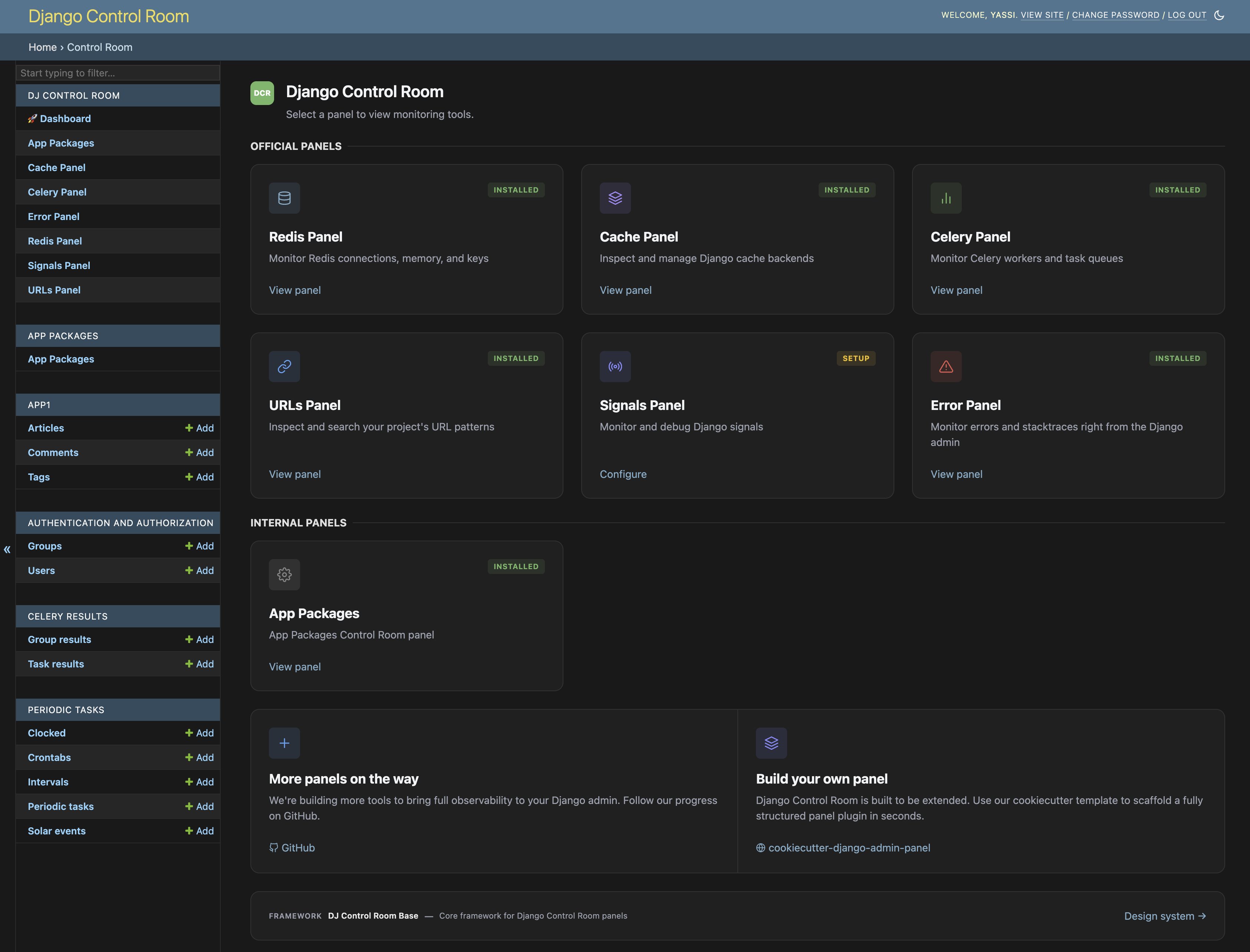
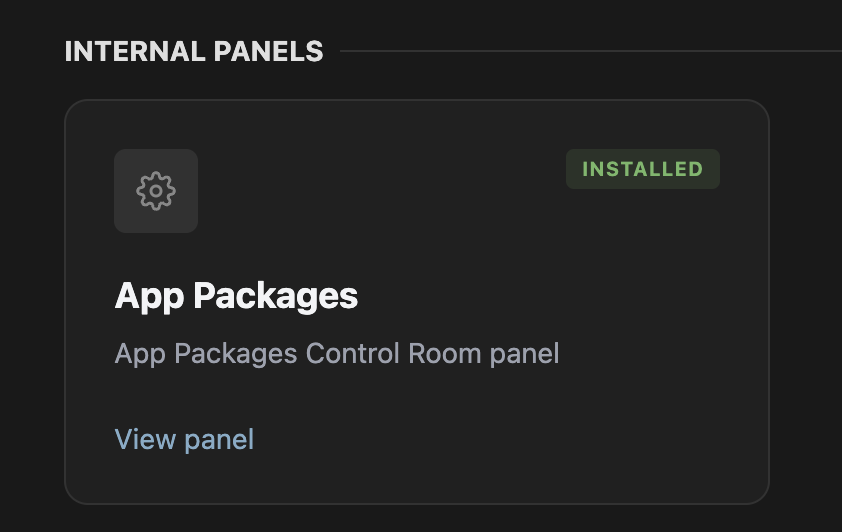
At this point you can visit the Django Control Room dashboard to see that this panel is now visible as
card under the Internal Panels section and accessible.
Read the installed packages
The panel needs data before it needs a page. Python keeps metadata for every installed package in the importlib.metadata module. We'll place the package lookup logic in its own utility module, dcr_app_packages/packages.py. This allows us to separate this
panel's "data" layer from the view and other presentation related logic.
# dcr_app_packages/packages.py

import re
from importlib import metadata


def _normalize(name):
    """Normalize a distribution name the way pip does, so Foo_Bar and foo-bar match."""
    return re.sub(r"[-_.]+", "-", name).lower()


def get_installed_packages():
    """Return one entry per installed distribution, sorted by name.

    The same distribution can appear more than once when it is installed in
    several places on sys.path. The first one found is the one Python imports,
    so later duplicates are ignored.
    """
    packages = {}
    for dist in metadata.distributions():
        name = dist.metadata.get("Name", "")
        summary = dist.metadata.get("Summary", "")

        if not name:
            continue

        normalized_name = _normalize(name)

        data = {
            "name": name,
            "normalized_name": normalized_name,
            "version": dist.version,
            "summary": summary,
        }

        packages.setdefault(normalized_name, data)

    return sorted(packages.values(), key=lambda x: x["normalized_name"])
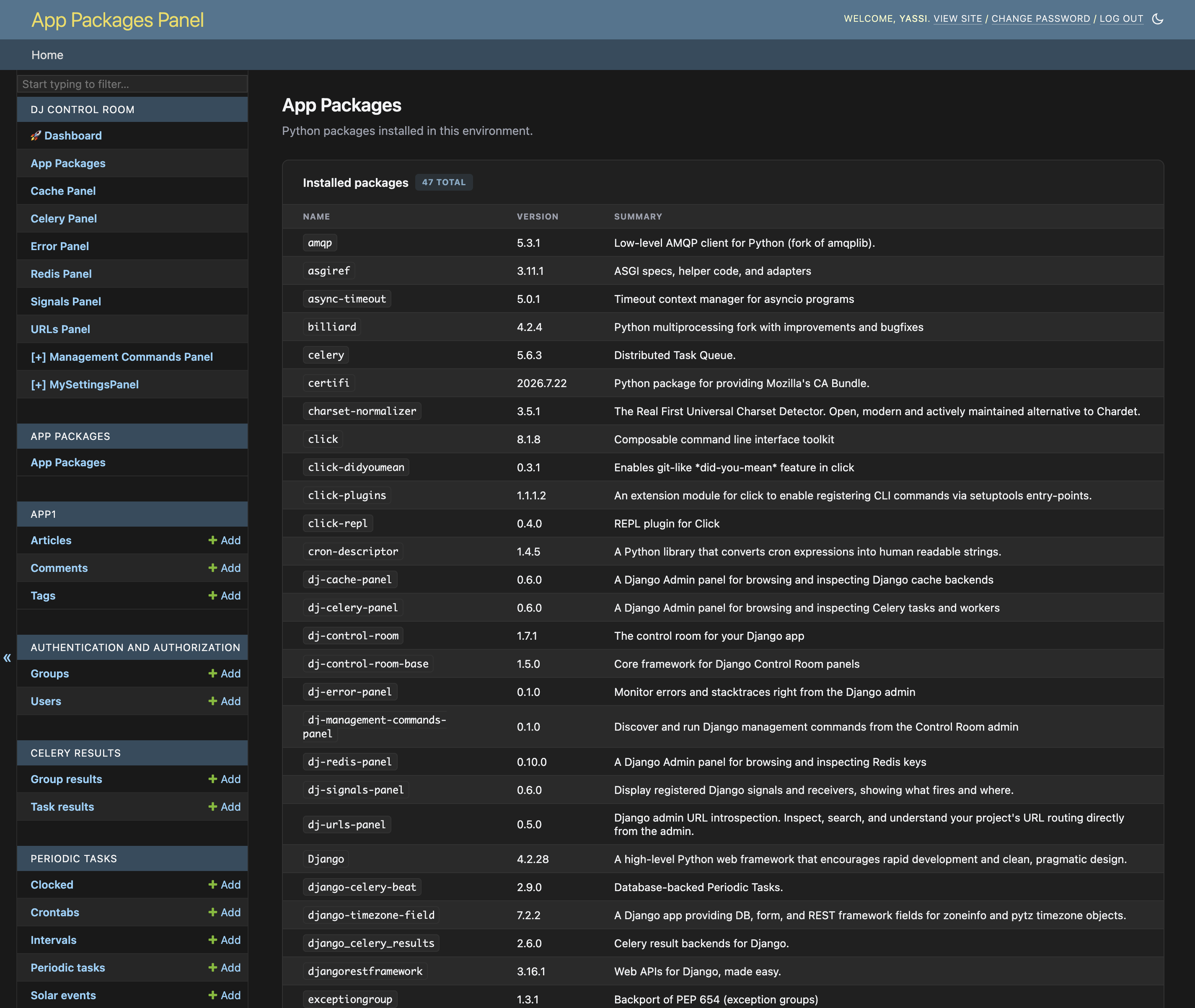
Each distribution reports a name, a version, and a one-line summary. The same package can turn up more than once if it is installed in several places on sys.path, so entries are keyed by their normalized name and the first one found wins. That is also the version Python would import.
Each entry returned from our function is a dictionary with the four fields the page will show.
{
    "name": "amqp",
    "normalized_name": "amqp",
    "version": "5.3.1",
    "summary": "Low-level AMQP client for Python (fork of amqplib).",
}Show them on the page
There should be as single view in dcr_app_packages/views.py that was generated from
the panel generation command. This view can now be changed to call our utility function and get package data:
from django.shortcuts import render

from .conf import panel_config
from .packages import get_installed_packages


@panel_config.permission_required("index")
def index(request):
    # DCR panels instantiate context this way
    context = panel_config.get_context(request, title="App Packages")

    # get packages from our packages.py utility function
    packages = get_installed_packages()

    # Add package data to the request context to pass along to templates
    context.update(
        {
            "packages": packages,
            "package_count": len(packages),
        }
    )
    return render(request, "admin/dcr_app_packages/index.html", context)
There are a few special tidbits in this view, such as the decorator @panel_config.permission_required, which handles permissions for the panel and locks our panel to
staff users by default. While this is not the focus of this guide, you can learn more about DCR permissions in the guide Permissions and Scopes in Django Control Room
For the template, we can rely on the DCR design system that is part of dj-control-room-base library. We can use dcr-page-header for the title area and dcr-data-table gives you everything you need to create a great looking table. Putting this all together inside of templates/admin/dcr_app_packages/index.html yields:
{% extends "dj_control_room_base/panel_base.html" %}
{% load i18n dcr_icons %}

{% block panel_branding %}
<h1 id="site-name"><a href="{% url 'dcr_app_packages:index' %}">App Packages Panel</a></h1>
{% endblock %}

{% block panel_title %}{{ title }}{% endblock %}

{% block panel_content %}
<div class="dcr-page-header">
  <div class="dcr-page-header__main">
    <div class="dcr-page-header__icon dcr-icon-color--accent">
      {% dcr_icon "cog" %}
    </div>
    <div class="dcr-page-header__body">
      <div class="dcr-page-header__title-row">
        <h1 class="dcr-page-header__title">{{ title }}</h1>
      </div>
      <p class="dcr-page-header__subtitle">{% trans "Python packages installed in this environment." %}</p>
    </div>
  </div>
</div>

<div class="dcr-data-table">
  <div class="dcr-data-table__header">
    <div class="dcr-data-table__header-info">
      <h3 class="dcr-data-table__title">
        {% trans "Installed packages" %}
        <span class="dcr-badge">{{ package_count }} {% trans "TOTAL" %}</span>
      </h3>
    </div>
  </div>

  <div class="dcr-data-table__scroll">
    <table>
      <thead>
        <tr>
          <th>{% trans "Name" %}</th>
          <th>{% trans "Version" %}</th>
          <th>{% trans "Summary" %}</th>
        </tr>
      </thead>
      <tbody>
        {% for package in packages %}
        <tr>
          <td><code class="dcr-code">{{ package.name }}</code></td>
          <td>{{ package.version }}</td>
          <td>{{ package.summary }}</td>
        </tr>
        {% empty %}
        <tr>
          <td colspan="3">
            <div class="dcr-empty">
              <p class="dcr-empty__title">{% trans "No packages found" %}</p>
              <p class="dcr-empty__body">{% trans "No installed distributions were reported for this Python environment." %}</p>
            </div>
          </td>
        </tr>
        {% endfor %}
      </tbody>
    </table>
  </div>
</div>
{% endblock %}
Note that the template extends panel_base.html, which brings in the admin layout and the design system's CSS. That is why the markup needs no styles of its own, and why the page follows the same theme as the rest of the admin.
Two details are worth pointing out. The panel_branding block replaces the admin's site name in the top bar with a link back to this panel. And the icon in the page header comes from the dcr_icon tag. It looks up a built-in icon by name, and cog is the same one panel.py uses for the dashboard card. The other Control Room panels show an icon in this spot too.
Reload the panel to see every installed package with its version and summary.
Add search
At this point we have a fully functioning panel that lets us list all of the python packages in our environment, but why stop there? The rest of this guide adds a search function and interface.
We'll start by revisiting our dcr_app_packages/packages.py library and adding a new function responsible
for the filtering. Encapsulating this into a single function like this allows us to both separate concerns and test more easily. For simplicity our search will implement simple substring matching.
def filter_packages(packages, query):
    """Return the packages whose name or summary contains the query.

    Matching ignores case. The name is compared in its normalized form, so a
    search for foo_bar also finds foo-bar. An empty query returns every package.
    """
    query = query.strip().lower()
    if not query:
        return packages

    normalized_query = _normalize(query)
    return [
        package
        for package in packages
        if normalized_query in package["normalized_name"]
        or query in package["summary"].lower()
    ]
The query is normalized the same way as the package names, which is why django_redis finds django-redis. The summary is matched as typed, so a search for task queue finds Celery.
The view only needs a small change. Update dcr_app_packages/views.py:
from django.shortcuts import render

from .conf import panel_config
from .packages import filter_packages, get_installed_packages


@panel_config.permission_required("index")
def index(request):
    # New search parameter
    search_query = request.GET.get("q", "").strip()

    all_packages = get_installed_packages()

    # filter by the new search parameter
    packages = filter_packages(all_packages, search_query)

    context = panel_config.get_context(request, title="App Packages")

    # add a few new things to track in context like the search query itself.
    context.update(
        {
            "packages": packages,
            "package_count": len(all_packages),
            "result_count": len(packages),
            "search_query": search_query,
        }
    )
    return render(request, "admin/dcr_app_packages/index.html", context)
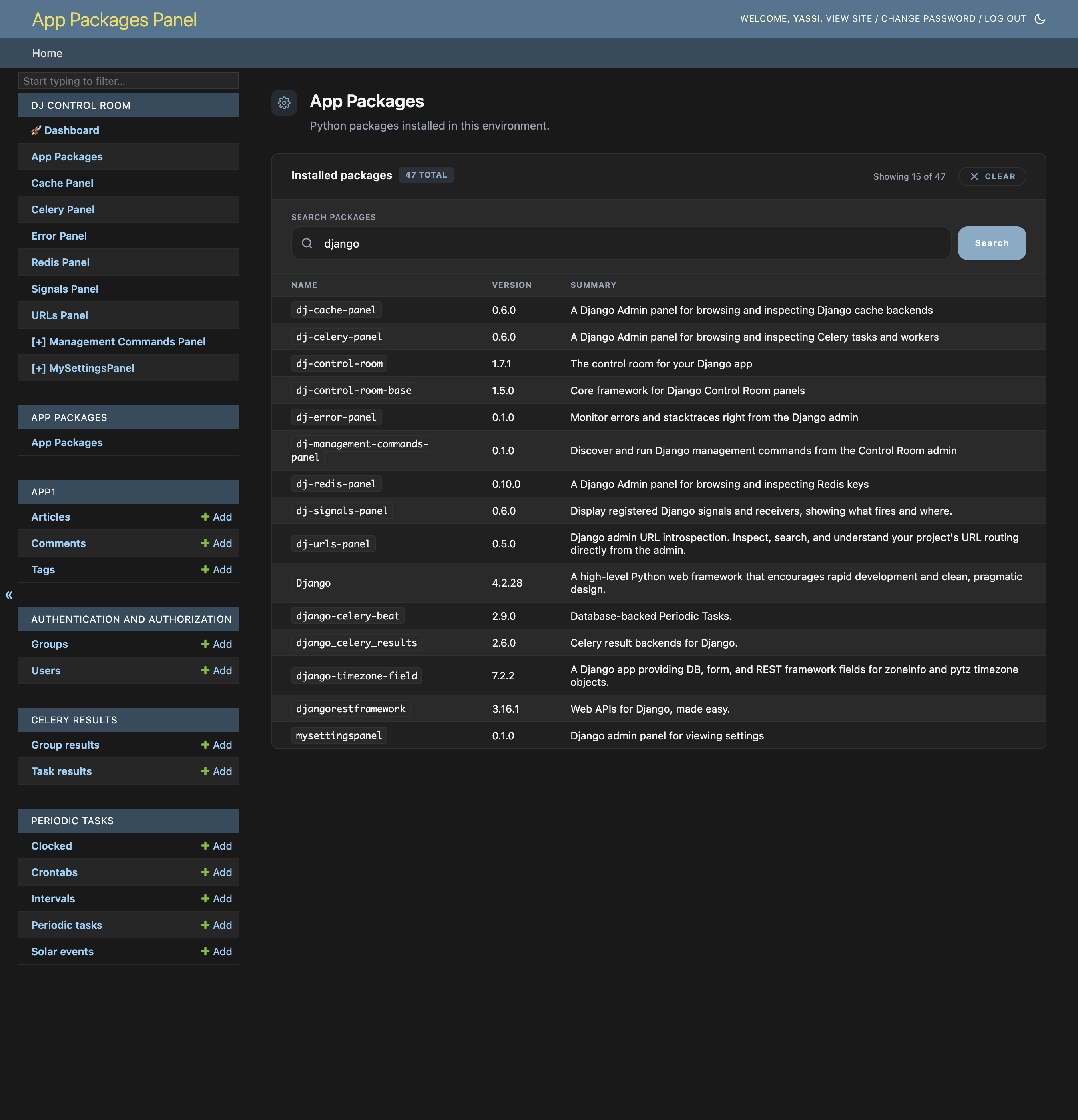
Here we've made the decision to rely on GET parameters to submit a query value q. package_count stays the total, result_count is how many matched, and search_query goes back to the template so the input keeps what the user typed.
In the template, you can simply replace the div that has class="dcr-data-table__header" With the snippet below. This will fit a form input and buttons at the top of the table to create a fully functioning search
interface that correctly submits search_query to our updated backend.
  <div class="dcr-data-table__header">
    <div class="dcr-data-table__header-info">
      <h3 class="dcr-data-table__title">
        {% trans "Installed packages" %}
        <span class="dcr-badge">{{ package_count }} {% trans "TOTAL" %}</span>
      </h3>
    </div>
    {% if search_query %}
    <div class="dcr-data-table__meta">
      <div class="dcr-data-table__meta-info">
        <span>{% blocktrans %}Showing {{ result_count }} of {{ package_count }}{% endblocktrans %}</span>
      </div>
      <a href="{% url 'dcr_app_packages:index' %}" class="dcr-btn dcr-btn--ghost dcr-btn--sm">
        <svg class="dcr-btn__icon" xmlns="http://www.w3.org/2000/svg" viewBox="0 0 24 24" fill="none" stroke="currentColor" stroke-width="2.5" stroke-linecap="round" stroke-linejoin="round"><path d="M18 6 6 18"/><path d="m6 6 12 12"/></svg>
        {% trans "CLEAR" %}
      </a>
    </div>
    {% endif %}
  </div>

  <div class="dcr-data-table__controls">
    <form class="dcr-form" method="get">
      <div class="dcr-form__group">
        <label class="dcr-form__label" for="package-search">{% trans "Search packages" %}</label>
        <div class="dcr-form__row--stretch">
          <div class="dcr-input-group">
            <svg class="dcr-input-group__icon" xmlns="http://www.w3.org/2000/svg" viewBox="0 0 24 24" fill="none" stroke="currentColor" stroke-width="2.5" stroke-linecap="round" stroke-linejoin="round"><circle cx="11" cy="11" r="8"/><path d="m21 21-4.3-4.3"/></svg>
            <input
              type="text"
              id="package-search"
              name="q"
              value="{{ search_query }}"
              class="dcr-input-group__input"
              placeholder="{% trans 'Search by name or summary...' %}"
            >
          </div>
          <button type="submit" class="dcr-btn dcr-btn--primary">{% trans "Search" %}</button>
        </div>
      </div>
    </form>
  </div>
Reload the panel and search for django. Your panel should now be fully functional and able to search through packages.